


Can You Use Apple CarPlay Without a Touchscreen?
Last Updated: November 24, 2026
Quick Summary
Yes, you can use Apple CarPlay without a touchscreen if your vehicle has another supported control method, such as a rotary knob, touchpad, or physical buttons. Whether it works well depends on your vehicle and setup. Check your model year and test the highlight movement before relying on it.
- Apple says CarPlay works with a vehicle's built-in controls like a knob, touchpad, or buttons.
- Check Apple's CarPlay vehicle list for your exact model year, since support can change.
- Test by connecting your phone and seeing whether the knob or touchpad moves the highlight.
- Check for an infotainment software update before concluding controller support is missing.
- Treat wired and wireless CarPlay as separate questions, since support can differ by connection type.
Table of Contents
- Can I Use Apple CarPlay Without a Touchscreen?
- Checking Whether Your Vehicle Supports Non-Touch Control
- Navigating CarPlay With a Rotary Knob, Touchpad, or Buttons
- Using Siri Voice Commands for CarPlay
- How to Add CarPlay to Ford SYNC 2 When Touch Control Is Not Enough
- Troubleshooting Input and Compatibility Problems
- Choosing Your Next Step for CarPlay Without Touch
- Frequently Asked Questions
Can I Use Apple CarPlay Without a Touchscreen?
Yes, you can use Apple CarPlay without a touchscreen, as long as your vehicle has another supported way to control it. Apple says CarPlay works with a vehicle's built-in controls, such as a rotary knob, touchpad, or physical buttons. Apple's CarPlay description of supported control methods
The short answer is that touch is not required, but how well it works depends on your vehicle and setup.
Some drivers find controller navigation smooth after a short learning period. Others find it slow or awkward, especially for scrolling long lists. Before you decide, check what your car actually supports.
Checking Whether Your Vehicle Supports Non-Touch Control
Start by looking at the controls you already have. Many vehicles with CarPlay include one of these:
- A rotary knob or scroll wheel on the center console
- A touchpad that moves a cursor on screen
- Physical buttons for home, back, and voice
- Steering-wheel controls for media and calls
If your car has none of these, CarPlay may only work with touch. Our SYNC upgrade guide on keeping steering wheel controls explains whether those controls can carry over after a SYNC upgrade. The presence of a knob or buttons is a good sign, but it does not by itself confirm that the vehicle exposes those controls to CarPlay. Some systems use a knob for the built-in menus only and hand CarPlay a touch-only interface.
How to verify support in four steps
- Check the model-year CarPlay list. Check Apple's published CarPlay vehicle list for your make and model year. Confirm your exact model year, not just the model, because support can change between years.
- Check the owner's manual for the control description. Look for language describing the center display controls as supporting "CarPlay" or "smartphone integration," and note whether the manual describes knob, touchpad, or button control of the display.
- Test it in the vehicle before you rely on it. Connect a phone with a known-good cable, open CarPlay, and try to move the highlight with the knob or touchpad. If the highlight moves, the vehicle is passing controller input to CarPlay. If only taps work, the system is treating CarPlay as touch-only.
- Check for a software update. Some vehicles may gain controller support for CarPlay through an infotainment software update. Check the manufacturer's update page for your model year before concluding the feature is missing.
Watch out: A vehicle that supports CarPlay over USB does not automatically support it wirelessly, and a vehicle that supports wireless CarPlay does not automatically expose every console control to the CarPlay interface. Treat connection type and control support as separate questions.
What to record before you shop for an adapter or retrofit
Write down four things: your model year, whether the display is touch-only or has a separate controller, whether CarPlay is wired or wireless, and whether the owner's manual lists CarPlay at all. Those four facts determine whether a retrofit is a software update, a head-unit swap, or not possible without replacing the display. Without them, an adapter purchase is a guess.
Quick checklist
- Is there a knob, touchpad, or button set near the screen?
- Do the steering-wheel controls change tracks or answer calls?
- Does your manual list CarPlay as supported for your model year?
- Did you test the highlight movement with a connected phone?
- Did you check for an infotainment software update?
If the checklist leaves you unsure, the safest next step is to test in the vehicle with your own phone rather than relying on a product listing or a forum post about a different model year.
Navigating CarPlay With a Rotary Knob, Touchpad, or Buttons
Controller navigation works differently than touch. Our guide to customizing CarPlay dashboard settings shows how to arrange the controls you reach most often. Instead of tapping an icon, you move a focus highlight and then press to select. The exact gestures vary by vehicle, but the underlying model is consistent: one control moves focus, one control confirms, and one control goes back.
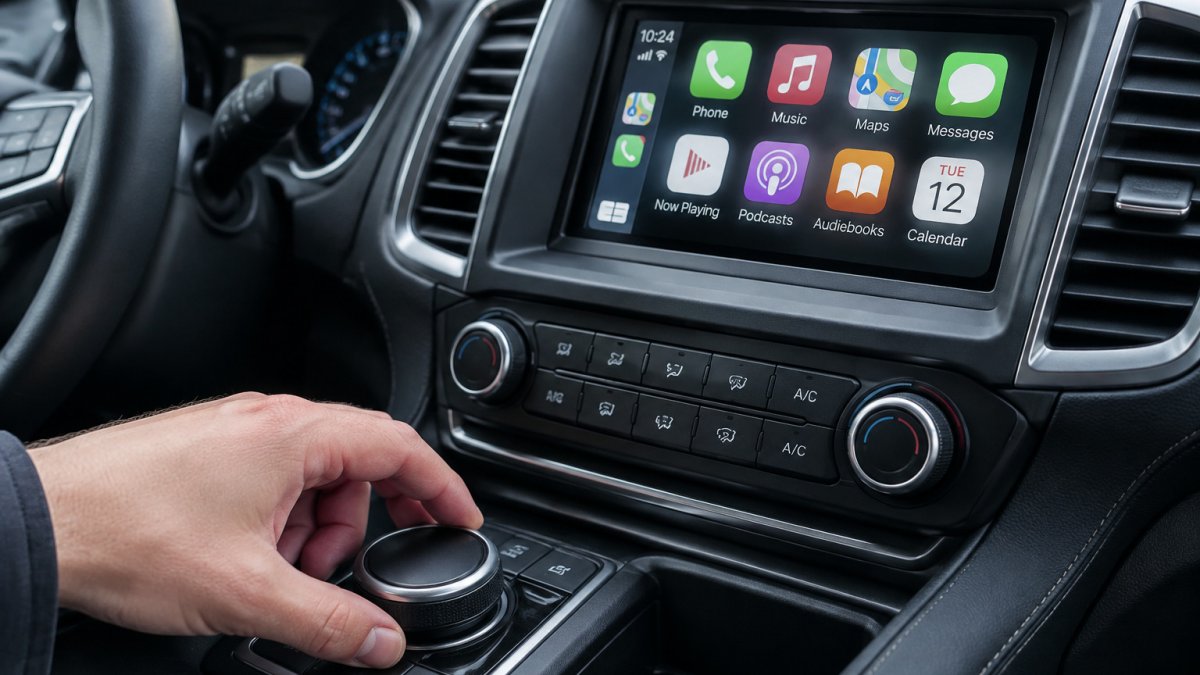
The three control types and how each behaves
- Rotary knob or scroll wheel: Turn to move the highlight, press down to select, and use a dedicated back button to return. On many vehicles the knob also scrolls within a list once an app is open.
- Touchpad: Swipe to move a cursor or highlight, tap to select, and use a physical back button or a two-finger gesture to return. Some touchpads support pressing the pad itself as a click.
- Physical button cluster: Arrow buttons move focus, an OK or center button selects, and Home and Back buttons jump between levels. This is the most common layout on vehicles that never offered a touchscreen.
Steering-wheel controls usually handle a narrower set: volume, track skip, answer and end call, and a voice button. They rarely move the on-screen highlight, so treat them as a companion to the center console controls rather than a replacement.
A step-by-step walkthrough you can practice
- Press the Home button to open the CarPlay home screen. If Home does nothing, press Back first, then Home.
- Turn the knob, swipe the touchpad, or press an arrow button until the highlight reaches the app you want.
- Press the center button, click the touchpad, or press OK to open it.
- Inside an app, use the same control to move between list items. On a knob, turning usually scrolls the list; pressing selects.
- Use the Back button to return one level. Press and hold Back on some vehicles to jump straight to the home screen.
Watch out: If the highlight jumps two items per turn or skips past the app you want, the knob is likely in a faster scroll mode or the vehicle is interpreting rapid turns as acceleration. Slow the input down rather than fighting it.
How the main apps behave without touch
- Maps: You can pan the map with the knob or touchpad on most systems, but entering a destination by controller is slow. Voice is faster for addresses. Once a route is running, the controller mainly handles zoom and ending navigation.
- Music: Browsing a long playlist or library by knob is the slowest common task. Use Siri to start an artist, album, or playlist, then use the knob for skip and volume.
- Phone: The controller can scroll recents and contacts, but Siri or a steering-wheel call button is quicker for dialing.
- Messages: Reading and replying by controller is limited on most vehicles. Siri dictation is the practical path.
The learning curve, honestly
Expect a short adjustment period. Most drivers get comfortable with the focus-and-select model after a few short trips, but long list scrolling stays slower than touch on nearly every system. The drivers who adapt fastest tend to use voice for search and the controller for confirmation, rather than trying to do everything with one input.
Keep your eyes on the road and set up destinations, playlists, and calls before you move. Controller navigation reduces reach compared with a touchscreen, but it does not remove the distraction of looking at a screen, so treat menu browsing while moving the same way you would treat phone use while moving.
Using Siri Voice Commands for CarPlay
Siri is often the easiest hands-off option. Press the voice button on your steering wheel or console, then speak naturally. You can ask Siri to play music, send a message, or start navigation.
Siri works best for common tasks. For browsing long playlists or small menu items, a knob or touchpad is usually faster.
How to Add CarPlay to Ford SYNC 2 When Touch Control Is Not Enough
If your SYNC 2 screen does not support CarPlay, or you only have touch controls, an upgrade may be the practical route. SYNC 2 vehicles often need a different head unit to add CarPlay.
Our SYNC 3 conversion kits are built for specific Ford and Lincoln models, so check your model and year before ordering. For example, our Ford Mustang 4" to 8" SYNC 3 Upgrade Conversion Kit is listed at $899.00 and is designed for 2015-2023 Mustangs.
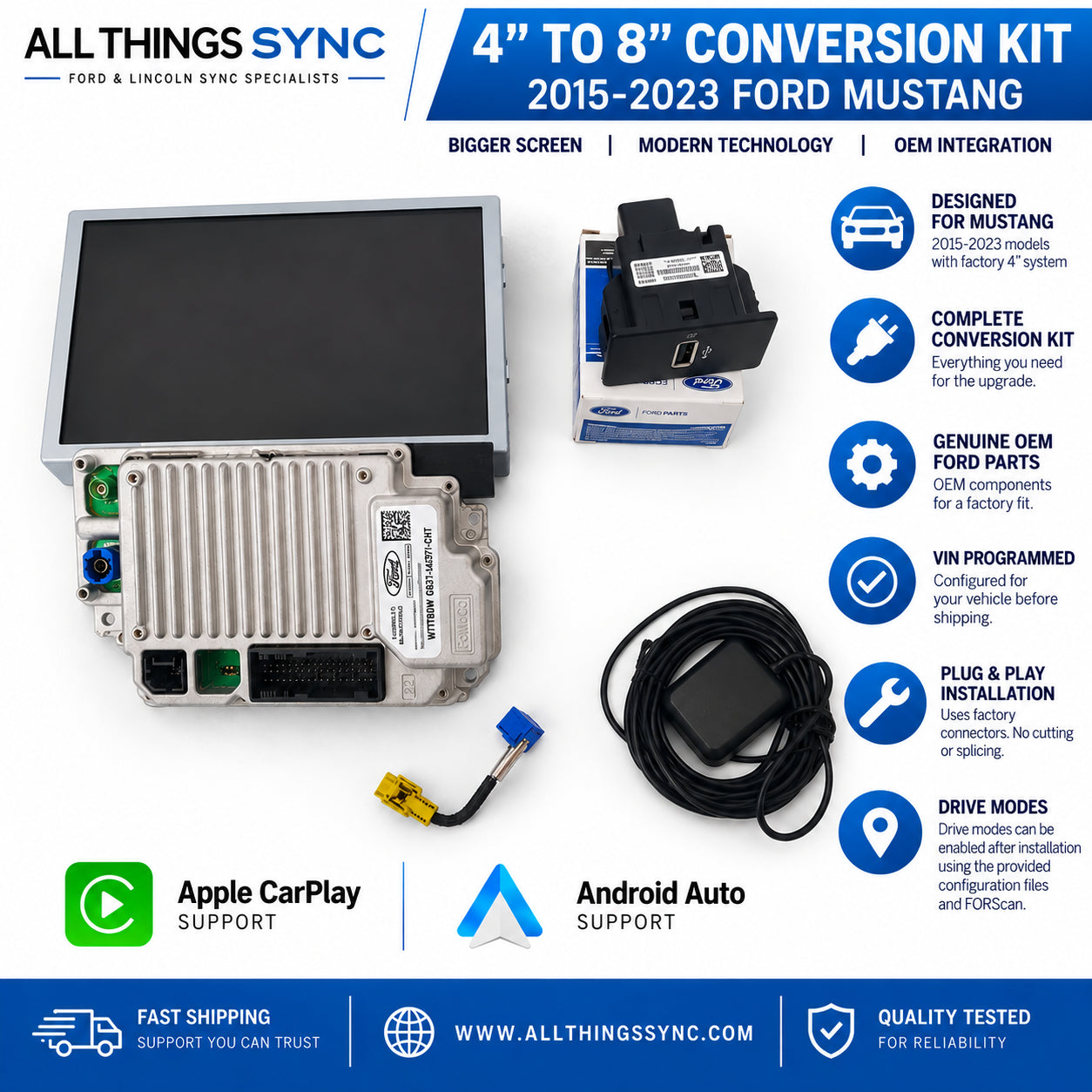
Fit and connectivity depend on your vehicle and setup, so confirm compatibility before you buy.
Troubleshooting Input and Compatibility Problems
Input problems often come from a few possible causes. A knob that does nothing, a touchscreen that ignores taps, or a stuck boot logo can each point to different parts, including the display, the digitizer, the APIM module, wiring, or power.
Check these first:
- Restart the phone and reconnect the USB cable
- Confirm the phone is on a supported iOS version
- Test with a different cable and USB port
- Look at the head unit's settings for CarPlay enablement
If the problem continues, a symptom guide can help you narrow it down. Our Ford SYNC 3 APIM failure symptoms guide explains how to tell whether the APIM is involved before you decide on a repair.
Choosing Your Next Step for CarPlay Without Touch
Your next step depends on what your car already has. If your steering wheel and knob work well, you may only need to adjust how you use CarPlay. If your head unit lacks CarPlay, an upgrade may be worth considering.
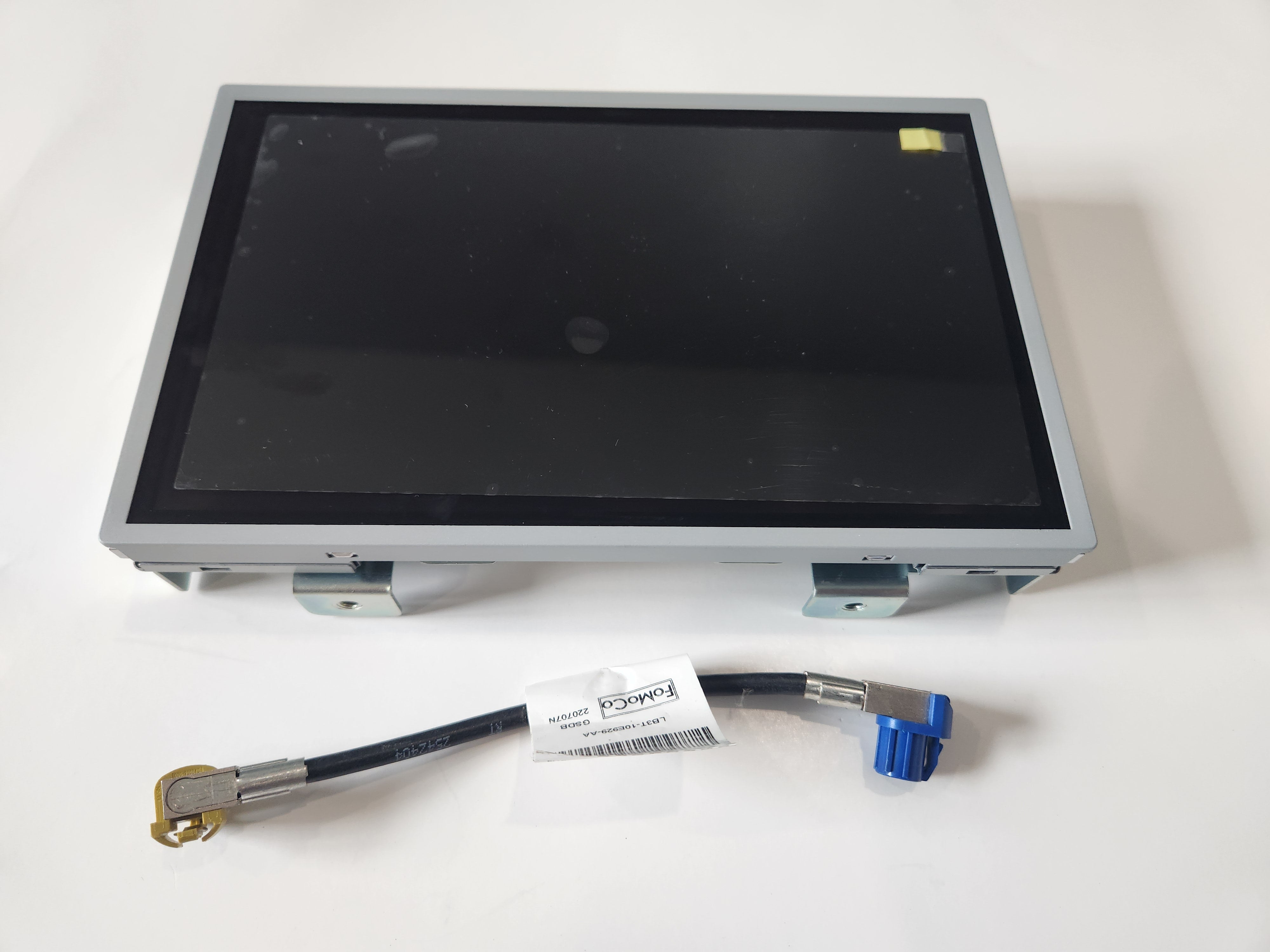
Compare options carefully. Check model compatibility, included parts, and whether your vehicle needs programming. Our Sync 4 8.46" display with LVDS cable and custom Sync 3 conversion bracket, listed at $349.00, is one option for owners upgrading an existing Sync 3 screen, though it is not compatible with Sync 2 or Lincoln MKC/MKZ models.
Quick comparison:
| Your situation | Best next step | Starting point |
|---|---|---|
| Knob or buttons already work | Learn controller navigation | Practice on short trips |
| Steering controls only | Use Siri and voice commands | Check your manual |
| Touch-only SYNC 2 | Consider a SYNC 3 upgrade | Verify model and year |
Frequently Asked Questions
Can CarPlay work without a touch screen?
Yes, CarPlay can work without a touchscreen when the vehicle provides another supported input method. Apple says supported vehicles can be controlled with physical knobs, buttons, or touchpads, and some vehicles also offer steering-wheel controls and voice control through Siri. Whether this works for your vehicle depends on the car's factory infotainment system and how it connects to CarPlay. Non-touch navigation may be workable but sometimes awkward, so test the controls in your specific vehicle before relying on them.
How do you control Apple CarPlay if your car lacks a touchscreen?
Use the controls your vehicle already has. Many vehicles with CarPlay support include a rotary controller, a touchpad, or physical buttons that move a focus highlight across on-screen items, and you press the knob or button to select. Steering-wheel controls and Siri voice commands can handle many tasks such as calls, music, and navigation. If your display has none of these input methods, CarPlay generally cannot be operated with touch alone, so check your vehicle's supported control options first.
Can you use Siri to navigate CarPlay without touching the screen?
Siri can handle many CarPlay tasks without touch, including placing calls, playing music or podcasts, sending messages, and starting navigation to a destination you name. Activate Siri with the steering-wheel voice button or a long press on the vehicle's voice control, or on the CarPlay voice control if your system offers one. Siri does not replace every on-screen function, so you may still need a rotary knob or buttons to move through menus.
How do I add CarPlay to Ford SYNC 2 if touch control is not enough?
Adding CarPlay to a Ford SYNC 2 system depends on your vehicle and factory equipment, and it generally requires an upgrade that supports CarPlay. Compare what your current system supports, then review the upgrade options available from All Things Sync, including the SYNC 3 conversion kits listed in our product catalog. Kit compatibility varies by model year, trim, and factory equipment, so confirm fit before ordering.
