


How Do You Customize Apple CarPlay Dashboard Settings?
Last Updated: November 4, 2026
Quick Summary
You change carplay dashboard settings on your iPhone, not in the car. Open Settings, tap General, then CarPlay, select your vehicle, and adjust the widgets, app icons, and appearance you want. Changes you make on the phone then appear on the vehicle's screen.
- Open Settings, tap General, then CarPlay, and select your vehicle.
- Press and hold an app icon until it moves, then drag it to a new spot.
- Set Appearance to Automatic so the display follows time of day and headlights.
- Keep the number of dashboard widgets small so the screen stays easy to read.
- Make all setting changes while parked, before you start driving.
Table of Contents
- Where to Find CarPlay Settings on Your iPhone
- Rearranging App Icons and Adding or Removing Apps
- How to Customize CarPlay Widgets on the Dashboard
- How to Customize CarPlay Split Screen Layouts
- Changing Appearance, Wallpaper and Display Zoom
- Limits to Expect: Vehicle Compatibility and Driver Safety
- Next Step: Confirm Your Vehicle Supports the Settings You Want
- Frequently Asked Questions
Learning how to change your carplay dashboard settings is simpler than most people expect. Most of the work happens on your iPhone, not in the car, and the changes you make on the phone show up on the vehicle's screen. This step-by-step walkthrough shows you where each CarPlay dashboard setting lives and what it does.
Where to Find CarPlay Settings on Your iPhone
Your dashboard settings are managed from the iPhone, not the vehicle's touchscreen. Open the Settings app on your iPhone, then go to General and select CarPlay. Choose your vehicle from the list, and you will see the options that control how CarPlay looks and behaves in the car.
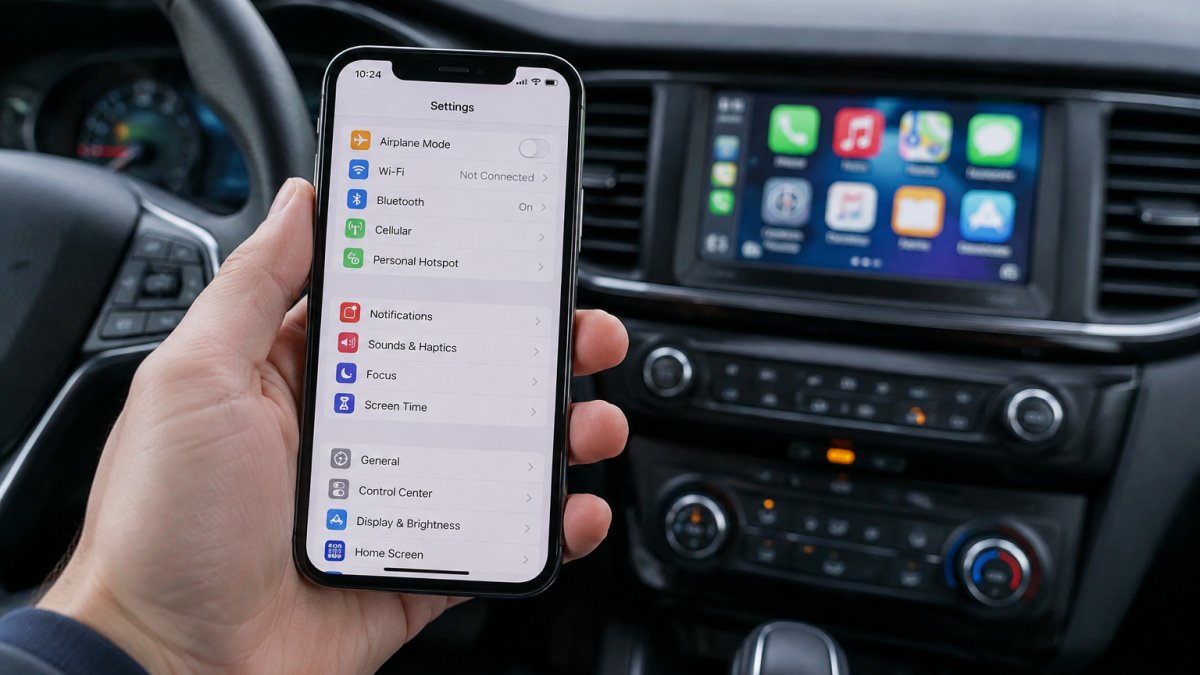
Apple's official support documentation confirms that dashboard suggestions, wallpaper selection, and Driving Focus modes are all managed from the CarPlay settings on the connected iPhone (Apple's iPhone user guide on CarPlay settings).
Quick steps to get there:
- Open Settings on your iPhone
- Tap General, then CarPlay
- Select your vehicle
- Adjust the options you want
Settings can differ slightly depending on your iOS version and your vehicle's head unit, so the exact labels may vary.
Rearranging App Icons and Adding or Removing Apps
Your CarPlay home screen shows a grid of app icons. You can move them around so the apps you use most are easy to reach while driving.
To rearrange icons:
- Connect your iPhone to the car and open CarPlay on the vehicle's screen
- Press and hold an app icon until the icons begin to move
- Drag the icon to a new position
- Press the Home button or tap Done to save
To add or remove apps:
- Go to the CarPlay settings for your vehicle on the iPhone
- Choose the apps you want to show
- Remove apps you rarely use to keep the screen clean
A common mistake is filling the first screen with apps you only open once a month. Keep navigation, music, phone, and messaging up front.
How to Customize CarPlay Widgets on the Dashboard
Widgets let you see useful information at a glance, such as upcoming calendar events, calendar reminders, or media controls. iOS 26 expanded widget management, so you can now select and prioritize widgets directly from the iPhone CarPlay settings menu (Community discussion on iOS 26 CarPlay home screen widgets).
Here is how to set them up:
- On your iPhone, open Settings and go to CarPlay
- Select your vehicle, then look for the Widgets option
- Turn on the widgets you want to see
- Use the reorder controls to place the most useful widgets first
Keep the number of widgets small. A cluttered dashboard is harder to read at a glance, and that matters more while you are driving.
How to Customize CarPlay Split Screen Layouts
Split screen is the part of CarPlay customization where the phone settings stop helping you. The layout is controlled from the vehicle's display, not from the iPhone Settings app, and the options you see depend on the head unit and the screen size it reports to CarPlay.
On most current systems, the layout picker lives in the CarPlay dashboard view. Tap the dashboard icon (the grid of small squares) on the left edge of the CarPlay screen, then look for the layout control in the corner of the dashboard. Depending on your vehicle, you may see options for a full dashboard, a two-panel layout, or a single-app view. Selecting a layout changes what appears in the main area and in the side panel.
A practical setup sequence:
- Park the vehicle and connect your iPhone so CarPlay is active.
- Open the dashboard view from the left-edge icon.
- Choose the layout that gives navigation the largest panel.
- Set the side panel to the app you check most often, such as Music or Phone.
- Confirm that text in the navigation panel is readable from the driver's seat before you drive.
Watch out: on some head units the dashboard layout is fixed by the manufacturer and the picker is grayed out or absent. That is a vehicle limitation, not a phone setting, and no iPhone change will unlock it.
What split screen actually costs you. A two-panel layout shrinks each app's usable area. Navigation maps lose some zoom range, media apps show fewer rows, and touch targets get smaller. If you find yourself squinting or stabbing at icons, the layout is working against you. A single-app view with Siri for quick switches is often the lower-distraction choice, even though it looks less capable.
Vehicle-dependent behavior to expect. The dashboard layout can differ between a SYNC 3 unit and a SYNC 4 unit, and it can differ between model years of the same nameplate. Some systems remember your last layout per vehicle; others reset to a default each connection. If your layout keeps reverting, check whether the head unit has a saved profile for your phone, and confirm the iPhone is connecting to the same vehicle entry in CarPlay settings rather than a duplicate.

Changing Appearance, Wallpaper and Display Zoom
Appearance settings split into two groups: the ones the iPhone controls and the ones the vehicle controls. Knowing which is which saves you from hunting for a toggle that does not exist on your screen.
Ford & Lincoln SYNC 3 Wireless CarPlay & Android Auto USB Hub →
Phone-controlled appearance. In Settings > General > CarPlay > [your vehicle], the Appearance option lets you choose Light, Dark, or Automatic. Automatic follows the vehicle's ambient light and headlight state on most systems, so the display dims at night without you touching it. If you drive at dawn or dusk often, Automatic is usually the least fiddly choice. If you prefer a consistent look, Dark reduces glare at night but can wash out in direct sun; Light is easier to read in daylight but harsh after dark.
Wallpaper. The wallpaper sits behind the app grid on the CarPlay home screen. In the same vehicle-specific CarPlay settings, the Wallpaper option lets you pick from the built-in set. A high-contrast image keeps icon labels legible; a busy photo makes small text harder to read at a glance. Choose the wallpaper while parked, because the preview is easier to judge on the vehicle screen than on the phone.
Smart Display Zoom. This setting changes how many icons fit on the home screen and how large they render. It appears in the vehicle-specific CarPlay settings on iOS versions that support it. Turning zoom on typically means larger icons and fewer per row; turning it off fits more apps but shrinks touch targets. The right choice depends on your screen size and how far the display sits from your eyes. Adjust it, then look at the screen from the driver's seat, not from arm's length.
Head-unit-controlled appearance. Screen brightness, contrast, and sometimes a day/night threshold are managed by the vehicle's own display settings, not by CarPlay. If the CarPlay screen is too bright at night after you set Dark mode, the fix is usually in the head unit's display menu, not the iPhone.
A recommended starting setup:
- Appearance: Automatic, so the display tracks time of day and headlights.
- Wallpaper: A simple, high-contrast image.
- Display zoom: On if you find yourself leaning forward to read icons; off if you want more apps per screen.
Watch out: appearance and zoom changes can take a moment to apply, and some vehicles only refresh them after the phone reconnects. If a change does not appear, disconnect and reconnect CarPlay before assuming the setting failed.
Why this matters for distraction. Appearance is not cosmetic. A layout with large icons, high contrast, and a dark background at night reduces the time your eyes spend decoding the screen. Treat wallpaper and zoom as safety settings, not decoration, and set them once while parked.
Limits to Expect: Vehicle Compatibility and Driver Safety
Not every Ford or Lincoln supports every CarPlay setting. Older systems, such as a factory SYNC 2 unit, may not offer the same dashboard controls as newer SYNC 3 or SYNC 4 systems. If you do not see an option described here, your vehicle or head unit may not support it.
Compatibility also depends on your head unit and wiring. Hardware support for CarPlay and Android Auto depends on the vehicle and setup, so check your model and year before assuming a feature will work.
For safety, make all setting changes while parked. Set up your widgets, icons, and layouts before you start driving, and use voice commands for quick actions on the road. Keeping your eyes on the road matters more than any dashboard customization.
The table below sums up the main limits and where each setting is controlled, so you can check what your vehicle supports before you start.
| Setting | Where it is controlled | Limit to expect |
|---|---|---|
| Dashboard widgets | iPhone CarPlay settings | Depends on iOS version and head unit |
| Split screen layout | Vehicle display | Fixed by manufacturer on some head units |
| Appearance (Light, Dark, Automatic) | iPhone CarPlay settings | Automatic tracks headlights on most systems |
| Screen brightness and contrast | Vehicle display settings | Not controlled by CarPlay |
| Older SYNC 2 systems | Factory head unit | May lack some dashboard controls |
| Setting changes | Parked vehicle | Make all changes before driving |
Next Step: Confirm Your Vehicle Supports the Settings You Want
Before you spend time customizing, confirm that your Ford or Lincoln supports the CarPlay features you want. If your factory system is an older SYNC 2 unit, you may need an upgrade path to get full CarPlay support. Our [Sync 3 Wireless CarPlay & Android Auto USB Hub | page:1] is one option to explore.

Frequently Asked Questions
Can I customize CarPlay without an iPhone? No. The CarPlay dashboard settings are managed from a connected iPhone, so the phone is required to change them.
Why don't I see the widget options on my dashboard? Widget options depend on your iOS version and your vehicle's head unit. Make sure your iPhone is updated and that your vehicle supports the feature.
Can I change the CarPlay wallpaper while driving? It is safer to change the wallpaper while parked. Set it once, then leave it alone while you drive.
Frequently Asked Questions
Can you customize an Apple CarPlay dashboard?
Yes. Most of the dashboard is adjusted from the iPhone rather than the car. Open Settings on the iPhone, go to General, then CarPlay, and select your vehicle. From there you can rearrange app icons, choose which widgets appear and change the wallpaper and appearance options. Which options appear depends on your iOS version and on what your vehicle's head unit supports, so the menu you see may differ from another driver's.
How do I change the CarPlay menu side?
The position of the app grid and the sidebar depends on the layout your vehicle supports. On the iPhone, open Settings, go to General, then CarPlay, select your vehicle and review the layout options. Some vehicles offer a fixed layout with no side switch, so if you do not see a left or right option, your head unit may not allow that change. Check the vehicle's own display settings as well.
Can I add widgets to my Apple CarPlay dashboard?
In iOS 26, widget management is available through the iPhone's CarPlay settings for your vehicle. Open Settings, select CarPlay, choose your car and then Widgets to add, remove or reorder widgets. The widgets you can place depend on the apps installed on your iPhone and on the dashboard layout your car supports. Changes sync to the car once the iPhone is connected.
How do I customize my CarPlay app layout?
Rearranging the app layout is done on the iPhone. Go to Settings, then General, then CarPlay, and select your vehicle. Use the Customize option to move app icons to different positions and to add or remove apps from the dashboard. Keep frequently used navigation and music apps in the most visible spots, since the layout you set applies every time you connect. Some vehicles restrict how many icons fit on one screen.
