


Ford SYNC 4 Offline Maps: Download Guide and Limits
Last Updated: November 17, 2026
Quick Summary
SYNC 4 does not offer a full downloadable map package; instead it stores offline maps for your favorite locations so navigation keeps working when cellular service drops. To update map data, select your SYNC generation, enter your 17-character VIN, and choose Check Available Updates on Ford's support site.
- Saved maps for favorite locations refresh as part of the normal map update cycle.
- Ford says Connected Navigation downloads maps for the usual radius four times per year and provides a full map update once per year.
- Live traffic, cloud-based rerouting, and online points-of-interest search stop when the connection drops.
- Install the software update first, then re-check for the map update when both are pending.
- A drive formatted with the wrong file system or files placed in a subfolder is a common reason the system never recognizes the update.
Table of Contents
- What SYNC 4 Offline Maps Actually Store
- SYNC 4 vs SYNC 4A and Vehicle Compatibility
- How to Check Map and Software Update Availability by VIN
- Connected Navigation vs Offline Mapping
- Step-by-Step: Installing a Map Update on Supported Systems
- Troubleshooting Failed Downloads and Update Errors
- When Offline Maps Are Not Enough: Upgrading Your SYNC Hardware
- Frequently Asked Questions
What SYNC 4 Offline Maps Actually Store
Ford's SYNC 4 system can keep map data on board for the places you drive most, and that is the part most owners misunderstand. This Ford SYNC 4 offline maps download guide starts with the honest answer: SYNC 4 stores maps for your favorite locations so navigation can keep working when the signal drops. According to Ford's SYNC 4 navigation options page, the system can update and store maps for favorite locations for use when cellular service is unavailable.
Many Ford owners expect a full map of the country stored in the vehicle. That is not what this feature does.
Saved Maps for Favorite Locations
Think of it as a memory of your regular routes, not an atlas.
- Maps for favorite locations are saved in the vehicle
- They stay usable when the cellular connection drops
- They refresh as part of the normal map update cycle
Why This Is Not a Full Downloadable Map Package
Here is the contrarian part most guides skip: offline map storage and connected navigation are two different things. Map updates are a vehicle-specific check tied to your VIN, not a general file you grab and load.
So if you are hunting for a single "download everything" button, it likely does not exist on your truck. What exists is saved map data for favorite locations, plus a map update process tied to your vehicle.
SYNC 4 vs SYNC 4A and Vehicle Compatibility
Compatibility is where owners get burned, because SYNC 4 and SYNC 4A are not the same animal. SYNC 4 and SYNC 4A are different systems, and navigation features, screen size, and map handling can differ by model year and trim.
What most guides miss is that two trucks with the same badge can carry different hardware. Your model year, your VIN, and the SYNC generation installed at the factory all decide what your navigation can do.
Before you plan any map work, confirm three things:
- Your exact SYNC generation, shown in the vehicle's settings
- Your model year and trim
- Whether your vehicle was built with connected navigation hardware
If you are unsure, your VIN is the fastest way to settle it. Ford's own tools use it for exactly this reason.
How to Check Map and Software Update Availability by VIN
Ford's official process is short, and it beats guessing every time. Per Ford's map update support instructions, you select your SYNC generation, enter your vehicle identification number, and choose "Check Available Updates."
Follow it in this order:
- Open the Ford support site for SYNC updates
- Select your SYNC generation from the list
- Enter your 17-character VIN from the windshield or door jamb
- Choose "Check Available Updates"
- Read the result before you touch anything else
That result tells you whether a map update or software update exists for your vehicle.
Keep your VIN handy. You will need it again for any support call.
Connected Navigation vs Offline Mapping
Connected Navigation and offline mapping solve different problems, and mixing them up leads to disappointment. Ford says its Connected Navigation service downloads maps for the vehicle's usual radius four times per year and provides a full map update once per year, according to Ford's Connected Navigation feature page.
Offline mapping, by contrast, is the stored map data for favorite locations that keeps route guidance alive when you lose signal. It is not a live service, and it does not replace Connected Navigation, it covers the gap when the connection drops.
| Feature | Connected Navigation | Offline Map Storage |
|---|---|---|
| What it needs | Cellular or Wi-Fi connection | No live connection required |
| Map refresh | Regular radius downloads plus a yearly full update | Updates with the normal map cycle |
| Live traffic | Yes, while connected | No, saved maps do not carry live traffic |
| Cloud-based routing and detours | Yes, while connected | No, basic route guidance only |
| Search for new destinations | Yes, including points of interest | Limited to saved areas and favorites |
| Best for | Live traffic, detours, current roads | Dead zones and spotty coverage |
| Coverage | Broad, connection-dependent | Favorite locations you drive often |
What Actually Stops Working Without a Signal
A common mistake is expecting live traffic and detours to keep working in a tunnel with no bars. They will not. When the connection drops:
- Live traffic overlays stop updating
- Cloud-based rerouting stops
- Online points-of-interest search stops
That last point is the whole reason offline storage exists. It is a fallback, not a replacement.
Trial Periods and Service Status
Connected Navigation may come with a trial period, and service status depends on your vehicle and account. If your navigation features seem to have degraded, check the service status in your vehicle's settings or your connected services account before assuming the hardware has failed. A lapsed subscription can look like a navigation problem when it is really a service status issue.
How to Tell Which One You Are Using
A simple test: drive into an area with no cellular coverage and try to search for a new destination. If the search fails but your saved route still guides you, you are seeing offline storage doing its job. If both fail, the destination was never saved, add it as a favorite while you still have a connection so the data is there next time.
Step-by-Step: Installing a Map Update on Supported Systems
The exact install path depends on your vehicle, model year, trim, region, and factory build, so treat these steps as the general sequence and confirm details against your VIN result.
Before You Start: Confirm the Update Type
Run the VIN check first and read the result carefully. The result usually falls into one of three buckets:
- Map data only, the navigation database has a newer release for your build
- Software only, a SYNC 4 system update is pending, and map data may follow after it installs
- Both, install the software update first, then re-check for the map update
If the result says no update is available, stop here. There is no file to chase.
The General Install Sequence
- Run the VIN check and confirm an update is available for your vehicle
- Note the update type: map data, software, or both
- Decide on the delivery method your system supports, USB drive or over-the-air Wi-Fi
- If USB: prepare the drive per the update instructions (see below)
- Start the vehicle and keep the engine running for the duration of the install
- Follow the on-screen prompts and leave the USB drive in place until the system confirms completion
- Wait for the confirmation screen before removing the drive or turning off the vehicle
Expected result: the system reports the update complete, and the map version shown in the navigation settings reflects the new data.
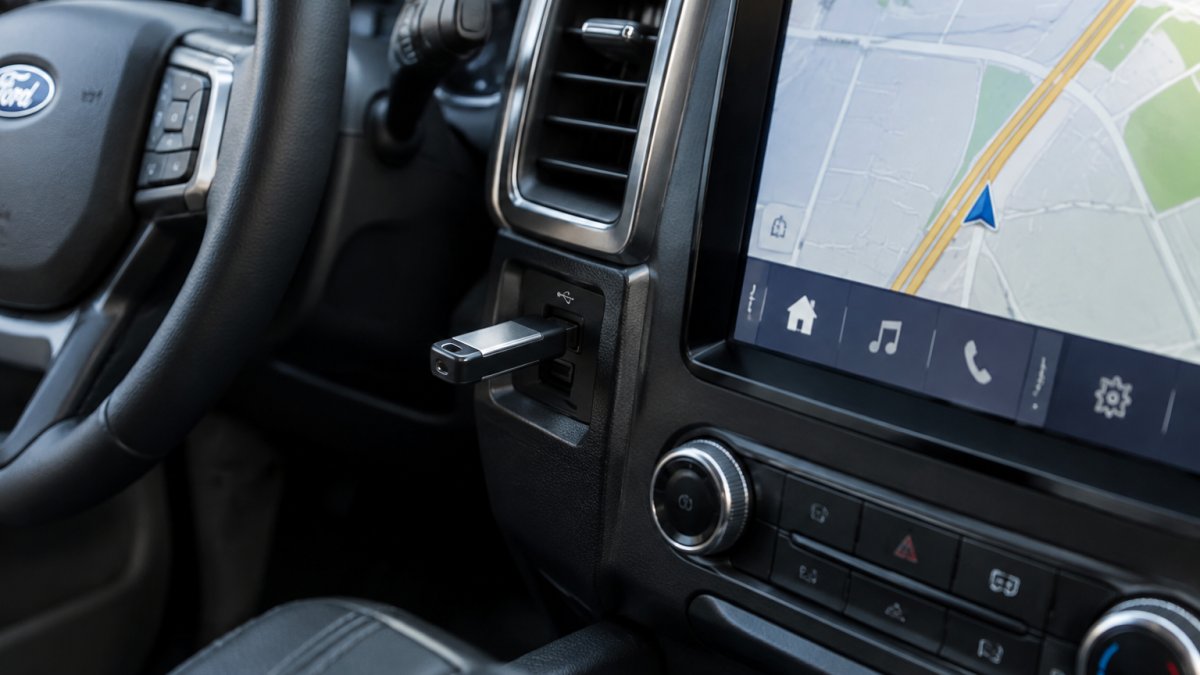
USB Drive Requirements and Preparation
USB updates only apply to systems that support them, so confirm against your VIN result before buying a drive. When USB is supported, a few habits prevent wasted attempts:
- Use a quality drive with enough capacity for the update file, check the file size listed with your update before formatting
- Format the drive exactly as the update instructions specify (file system and cluster size both matter)
- Copy files to the root of the drive exactly as directed, with no renaming and no nested folders unless the instructions call for them
Watch out: a drive formatted with the wrong file system, or one with files placed in a subfolder, is a common reason the system never recognizes the update.
Wi-Fi and Cellular Connection Requirements
Connected features need internet access. A stable Wi-Fi connection at home is the easiest way to let radius map downloads finish without interruption. Cellular works too, but a weak signal can stall a download halfway.
Watch out: a weak connection can interrupt a download. Park near a reliable connection before you begin.
What Offline Mapping Actually Stores, and How to Use It While Driving
This is the part most guides skip. Offline map storage in SYNC 4 is not a full downloadable atlas of every road, it is saved map data for your favorite locations, refreshed as part of the normal map update cycle. That means:
- Your regular destinations and the areas around them can stay usable when the cellular connection drops
- Live traffic, cloud-based routing, and detours still need a connection, saved maps keep basic route guidance going, not live data
- To get the most from offline storage, save the places you drive most as favorites so the system has a reason to keep that data current
If you are looking for a single "download the whole country" button, it likely does not exist on your vehicle. What exists is saved map data for favorite locations, plus a map update process tied to your VIN.
If the Install Stalls or Fails
If the progress screen freezes or the system returns an error:
- Leave the vehicle running and the drive connected for a few more minutes, some steps pause without visible progress
- If nothing changes, note the exact error message and the update status shown on screen
- Retry the install once from the beginning
- If it fails again, check that the drive format and file placement match the instructions exactly
- If the error persists, contact support with the error message and your VIN result in hand
Troubleshooting Failed Downloads and Update Errors
Most failed downloads trace back to one of four causes, and you can rule them out in minutes.
- Weak connection: move to strong Wi-Fi and retry
- Interrupted install: keep the engine running and the drive connected
- Wrong file or format: recheck the update instructions for your VIN result
If the error persists, note the exact message and your update status before contacting support. Our FAQs page answers the questions owners ask most about updates and module behavior, and it is a good stop before you call anyone.
When Offline Maps Are Not Enough: Upgrading Your SYNC Hardware
Sometimes the limit is not the map data. It is the hardware. Older SYNC 2 and early SYNC 3 systems simply cannot do what SYNC 4 navigation does, no matter how many updates you install.
That is where a hardware upgrade earns its place. If you drive a 2015-2020 F-150, the 12-inch SYNC 4 upgrade kit replaces the older interface with a factory-style screen and modern navigation. Owners of newer trucks can look at the 2021-2023 F-150 plug-and-play 8-to-12 upgrade for a larger display. Super Duty drivers have matching options: the 2017-2022 Super Duty 12-inch kit and the 2023-2026 Super Duty 8-to-12 plug-and-play upgrade.
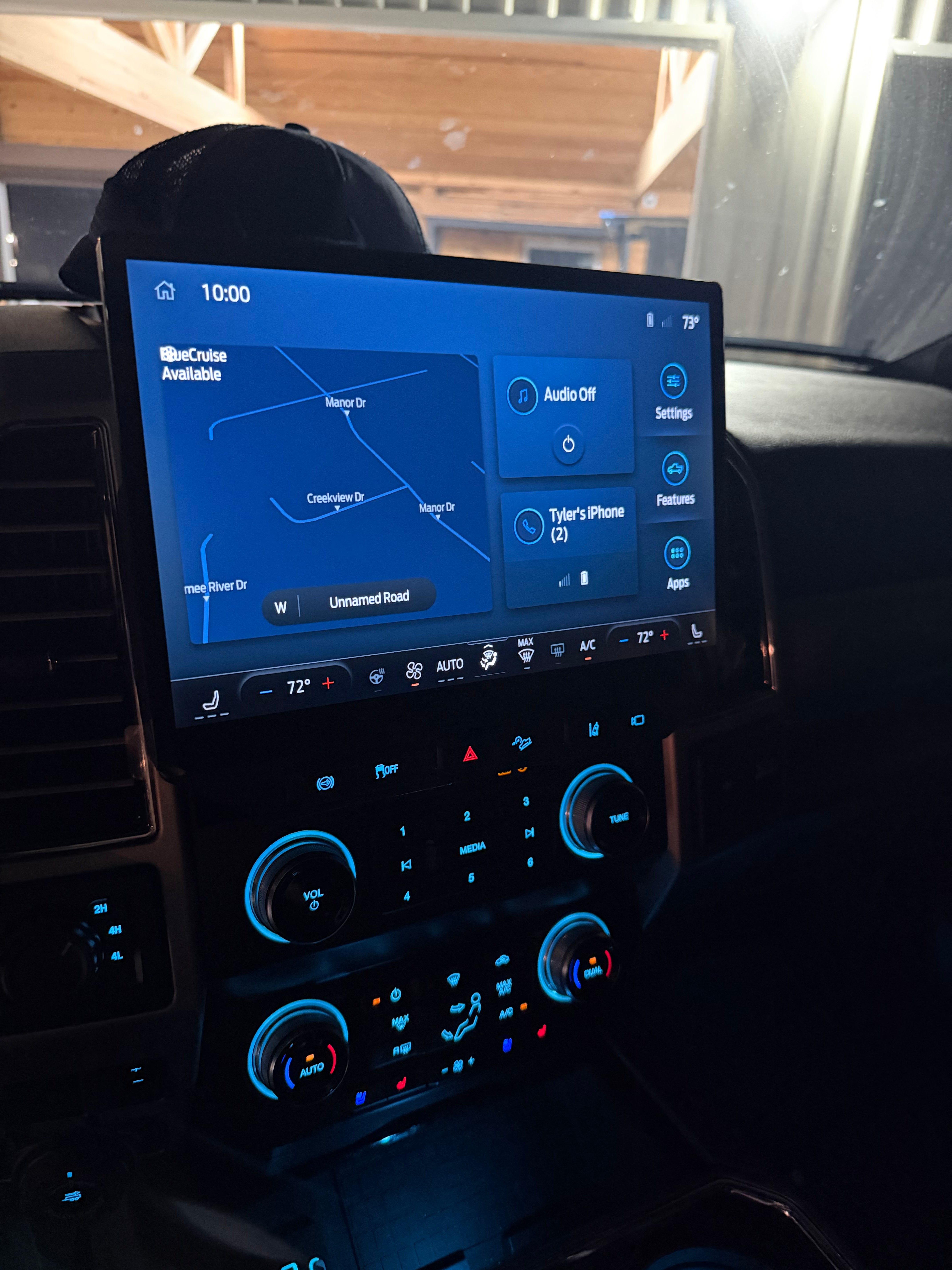
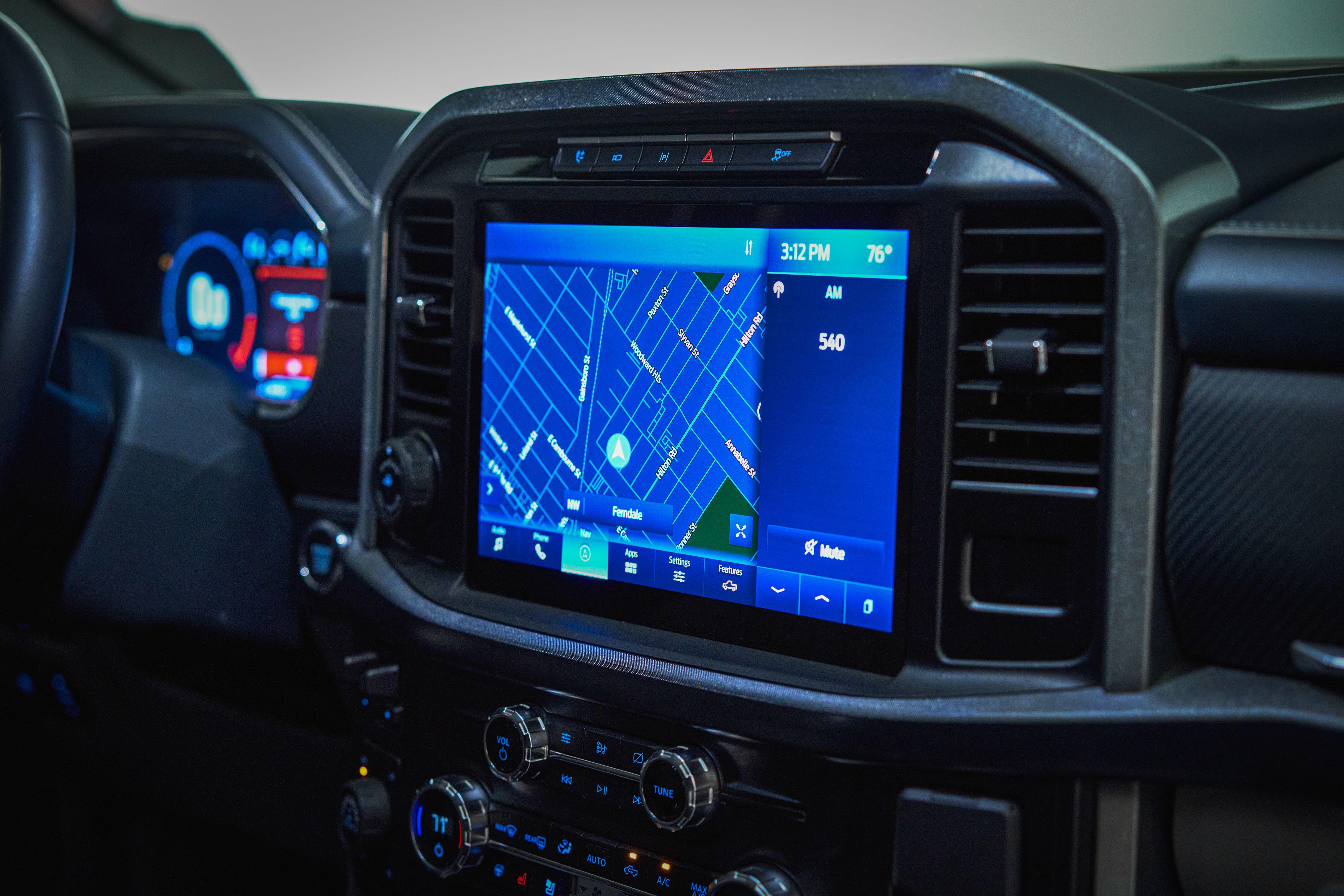
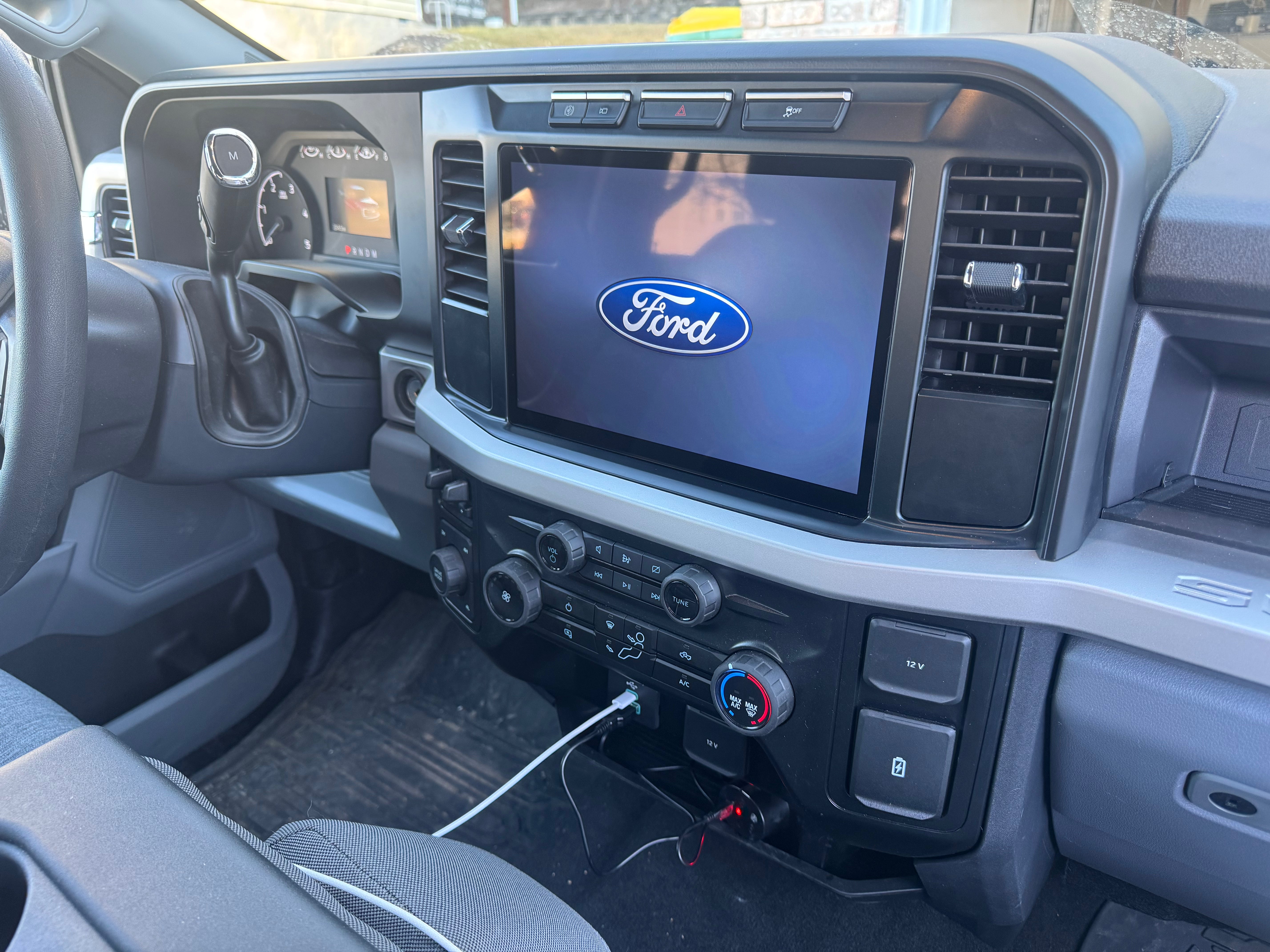
Our kits use genuine OEM components, and VIN-programmed modules can reduce configuration work on install. Compatibility still depends on your vehicle and setup, so confirm your build before ordering.
Offline map storage has real limits, and knowing them saves you hours of fruitless downloading.
Frequently Asked Questions
Can you download offline maps to Ford SYNC 4?
Not as a general-purpose map package. SYNC 4 can store maps of favorite locations so they remain available when cellular service drops, and update availability is checked by VIN for your specific vehicle. The supplied sources do not establish that every SYNC 4 vehicle can manually download arbitrary map areas, so treat offline maps as saved coverage rather than a full regional download.
Does Ford SYNC 4 navigation need a data connection?
Connected Navigation relies on connectivity for features like live traffic, route guidance updates, and detours. Connected Navigation keeps map coverage current while the vehicle has a connection. Saved maps for favorite locations are designed to work when cellular service is unavailable, so some navigation function can continue without a live connection, though feature availability varies by vehicle and equipment.
How do I update Ford navigation maps?
To check availability, select your SYNC generation, enter your vehicle identification number, and choose Check Available Updates. That VIN check tells you whether a map or software update exists for your vehicle. If one is offered, follow the on-screen or download instructions for your system, which may involve a USB drive or a Wi-Fi connection depending on the vehicle and model year. Update availability is vehicle-specific, so a method that works on one Ford may not apply to another.
What is the difference between SYNC 4 built-in navigation and phone navigation?
Built-in navigation runs through the vehicle's own system and, with Connected Navigation, can pull live traffic and route guidance without depending on your phone. Phone-based navigation depends on your device's data connection and app. Offline access differs too: SYNC 4 can store maps for favorite locations, while phone apps typically require you to download map areas in advance. Which suits you depends on how often you drive through areas with weak cellular coverage.
